Veterans Day week: preview the assembly and plan a thank-you note (special ed printables)
Veterans Day is Wednesday, November 11, 2026. That week often brings an assembly, a shortened period, or a class thank-you activity. Those schedule changes are hard to preview on the fly. SkillSprout’s teacher tools print a visual schedule, a first/then board, and a blank writing organizer from the same activity pictures and blank spaces already in the studio. This post shows real pages made that way, plus one Grade 1 sheet that practices what happens first, next, and last.
Preview the special day with a visual schedule
Assemblies and thank-you walks change the usual order. A four-step schedule keeps the day short enough to introduce before students leave the classroom. This sample uses four supported classroom activities: Read, Math, Movement, and Tidy up. Each row has a number, the activity picture and word, and a blank check box. The second page (not pictured) has matching cutout cards plus Plan changed and Finished cards for staff.
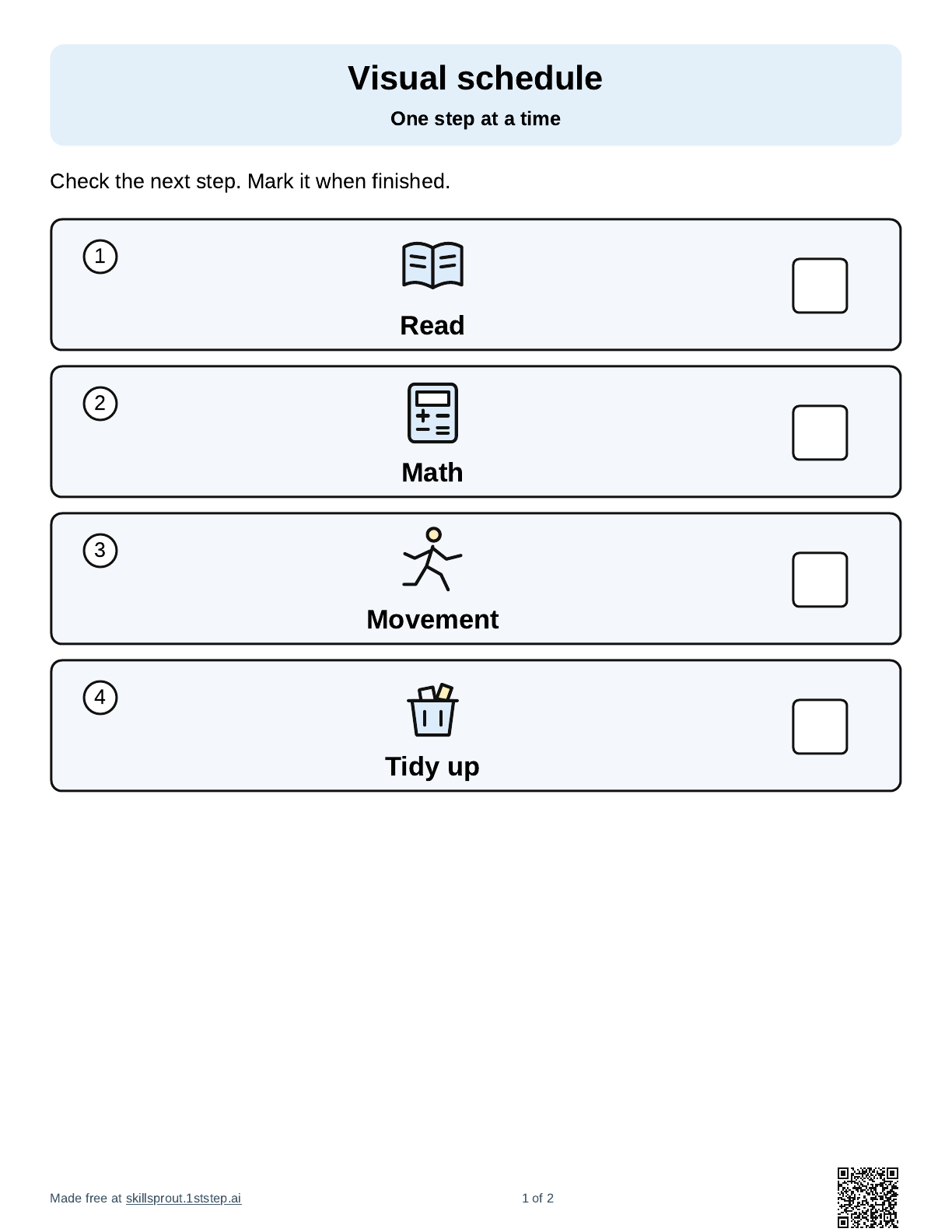
Open the printable visual schedule maker. Choose two to six activities from the fixed list (Read, Write, Math, Snack, Movement, Break, Tidy up, Pack bag). Soft color or grayscale share the same layout. The schedule does not invent new activity names or collect student information.
Hold one next step with a first/then board
When the assembly is next, or when a thank-you note comes after a short writing warm-up, a two-picture board is enough. This sample shows First: Write, Then: Break. The large pictures sit above the words. Teacher setup and blank teacher notes stay on the same page.
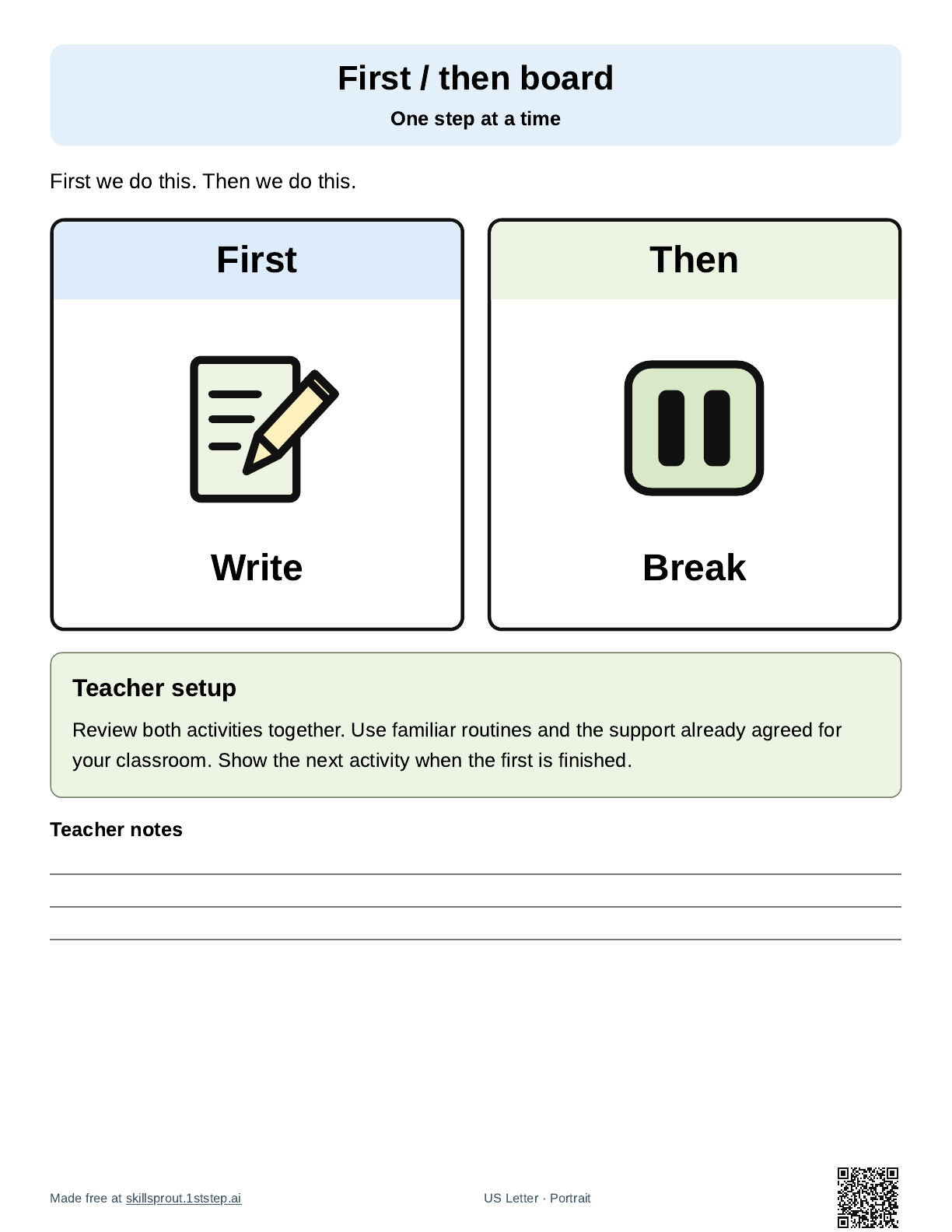
Open the first / then board maker. Both sides use the same eight activity choices. First and Then can be the same activity if that matches your plan.
Plan a thank-you note on a blank organizer
A Veterans Day thank-you note does not need a finished paragraph on the first try. The First, next, last organizer leaves three blank lined spaces and a topic line. Students or staff write or draw who the note is for, what to say, and how to close it on paper. The app does not invent the thank-you text or store student writing.
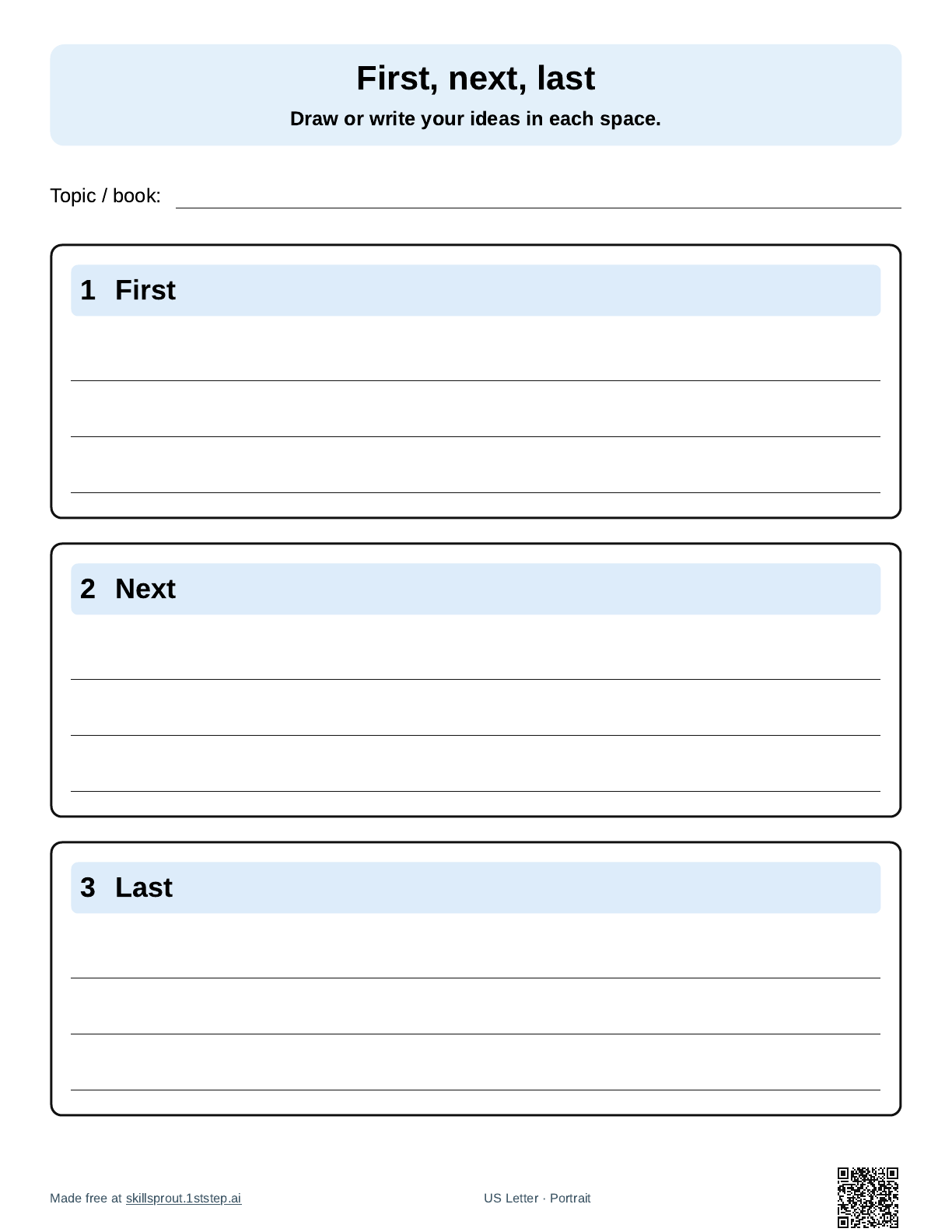
Open the writing organizer maker. Choose First, next, last; Story map; Main idea & details; or Compare two things. Lines or open space stay blank for paper completion. There is no answer key for these organizers.
Practice first, next, and last with a Grade 1 sheet
M.EE.1.MD.3.c reads: "Identify activities that come before, next, and after." The Grade 1 sample (worksheet version 12345) asks three questions about short routines:
- Find a seat, listen to a story, leave the seat. The answer for first is find a seat.
- Get a brush, brush teeth, rinse the brush. The answer for next is brush teeth.
- Get a cup, fill the cup, drink water. The answer for last is drink water.
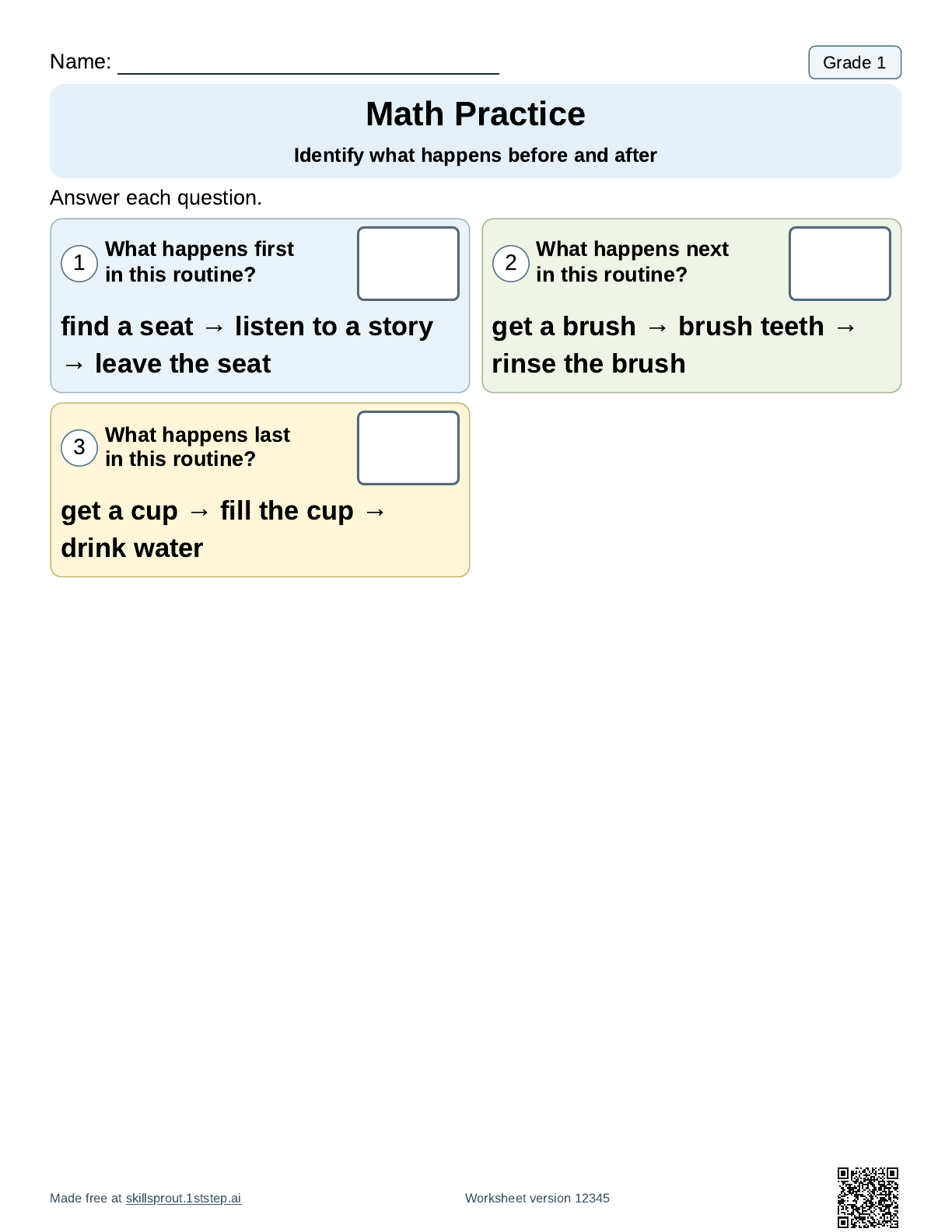
Open the full page: Grade 1 identify what happens before and after. The questions use first, next, and last. The published wording says before, next, and after. Keep version 12345 to reprint this sample, or change the version for different routines.
How to make these pages in the studio
- Open the SkillSprout studio with Google sign-in, or start from a tool page linked above.
- For routines, open Teacher tools, choose Visual schedule, First / then board, or Writing organizer, pick the activities or layout, then press Create printable.
- For the Grade 1 sheet, open the worksheet page linked above. Set questions, response format, visual support, and color or grayscale. Keep Include answer keys after student pages checked if you want the key.
- Press Generate Worksheets or use the ready preview, check the page, then print or download the PDF yourself.
The name line prints blank. No student names, diagnoses, or student work go into the builder. The worksheet and tool pages are public to browse. Making and printing happens in the studio with Google sign-in. More Grade 1 math is listed on Grade 1 math worksheets, and all ready skills are on the worksheets page.