Emergency sub packet: a one-day folder from a review pack, answer keys, and a staff handoff sheet
An emergency sub packet is the folder you hope nobody opens: one day of work that a substitute or a colleague covering your room can run without a phone call to you. November is a good time to build it. CDC’s FluView report for the week ending October 31, 2026 said seasonal flu activity “continues to increase in many parts of the country and is higher than typically observed at this time of year” (source: CDC FluView, Week 43, cdc.gov/fluview/surveillance/2026-week-43.html). The stretch before Thanksgiving break (Thursday, November 26, 2026) is also when a sudden absence is hardest to plan around. This post walks through one folder made from pages SkillSprout already prints: a mixed review pack with answer keys, a staff handoff sheet, and an optional first / then board.
This is not the same as a Thanksgiving week review pack, which you plan for a known short week, or a conference-week handoff for a short morning you know is coming. An emergency folder has to work on a day you did not plan, for someone who may never have been in your room.
What goes in the folder
Keep it to one day and the pages someone needs in their hands. A workable order, front to back:
- The staff handoff sheet. It goes on top because it is the first thing the sub should read.
- A first / then board or visual schedule (optional), if your students already use one.
- Student pages for the mixed review pack, one copy per student, clipped by skill.
- The answer keys, clipped separately, so the sub can check work without handing keys out by mistake.
- Your school’s own sub plan items that the app does not make: the bell schedule, emergency procedures, the dismissal list, and anything your school requires. Those come from your school, not from a worksheet tool.
Write “Emergency sub folder” and the date you last checked it on the front. Review it once a month. Swap the review pages when the skills get too easy, and check that the class list and procedures in your school’s part are current.
Pick review skills, not new ones
A sub day is not the day to introduce a skill. Choose skills your class has practiced this fall so students can work with the support they already know. The mixed skill review pack maker combines one to five ready K–6 special-ed activities. Each skill prints on its own page, and student pages come before the answer keys and Teacher Guides.
This sample is a Grade 1 pack with five skills, 3 questions per skill, write-in answers, high visual support, and worksheet version 12345:
- Put two groups together (M.EE.1.OA.1.a)
- Count forward by ones (M.EE.1.NBT.1.a)
- Use morning, afternoon, day, and night (M.EE.1.MD.3.b)
- Find an explicit story detail (ELA.EE.RL.1.1)
- Identify uppercase letters (ELA.EE.RF.1.3)
The counting page asks which number comes next after 21 → 22 → 23, 6 → 7 → 8, and 8 → 9 → 10. Short pages like this let the sub show one task at a time.
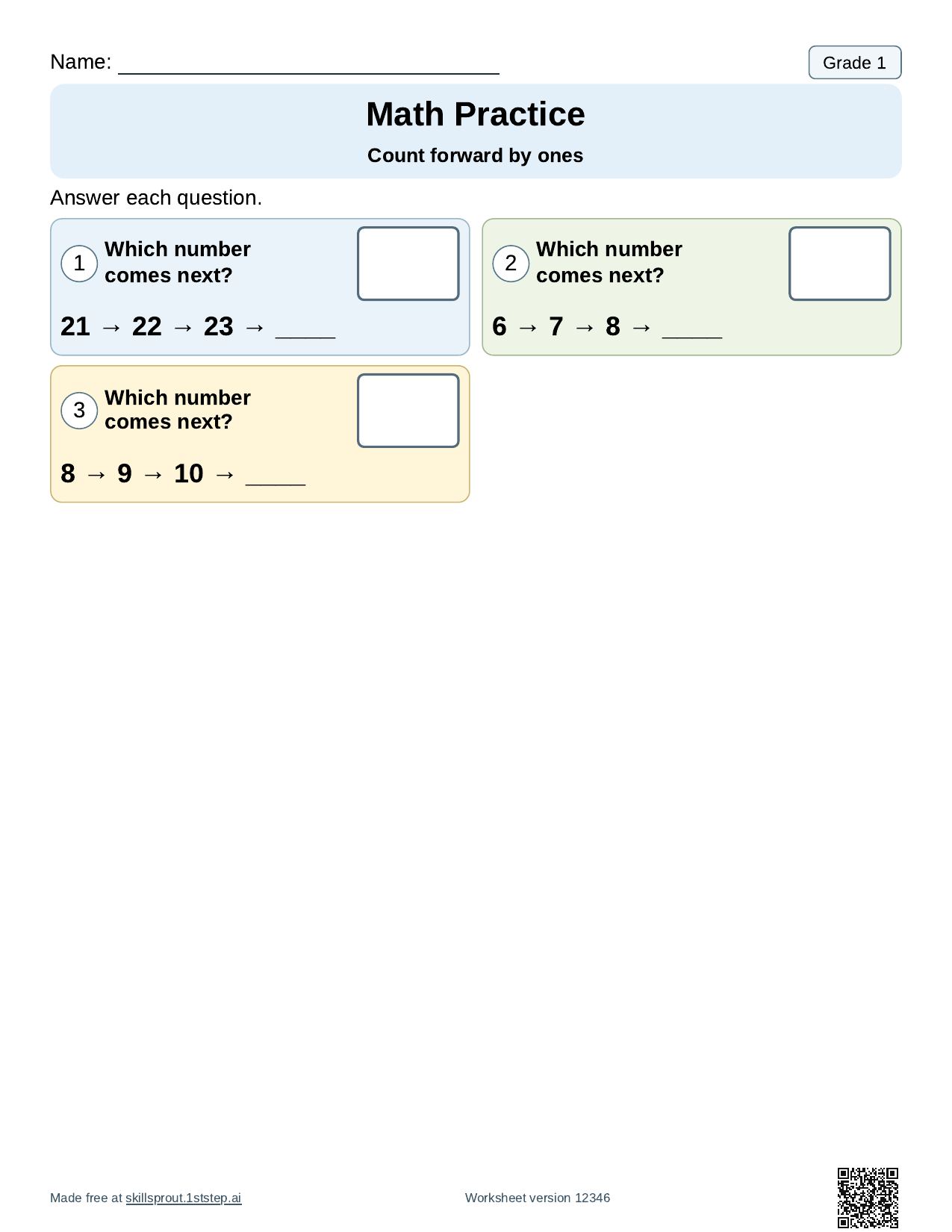
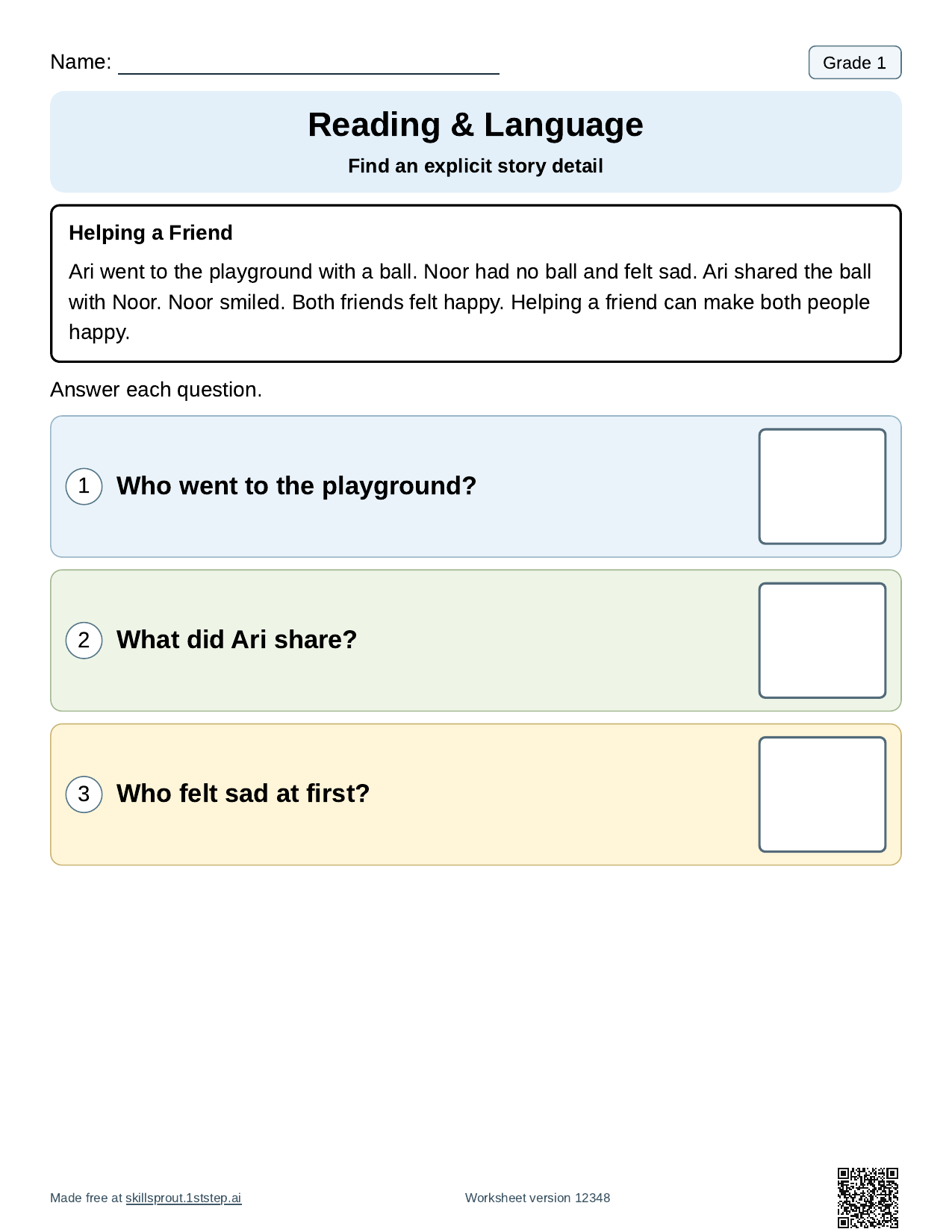
The reading page has a short passage, “Helping a Friend,” and three questions whose answers are stated in the text: who went to the playground, what Ari shared, and who felt sad at first.
The other pages ask students to put two small groups of pictures together, name the part of the day for times like 8 a.m. and 2 p.m., and find the uppercase form of j, a, and e.
How the sub uses the answer keys
Each key prints after all the student pages and lists the worksheet version from the matching page’s footer, so the sub can match a key to its page even if the stack gets shuffled. For the reading page, the key lists Ari, ball, and Noor.
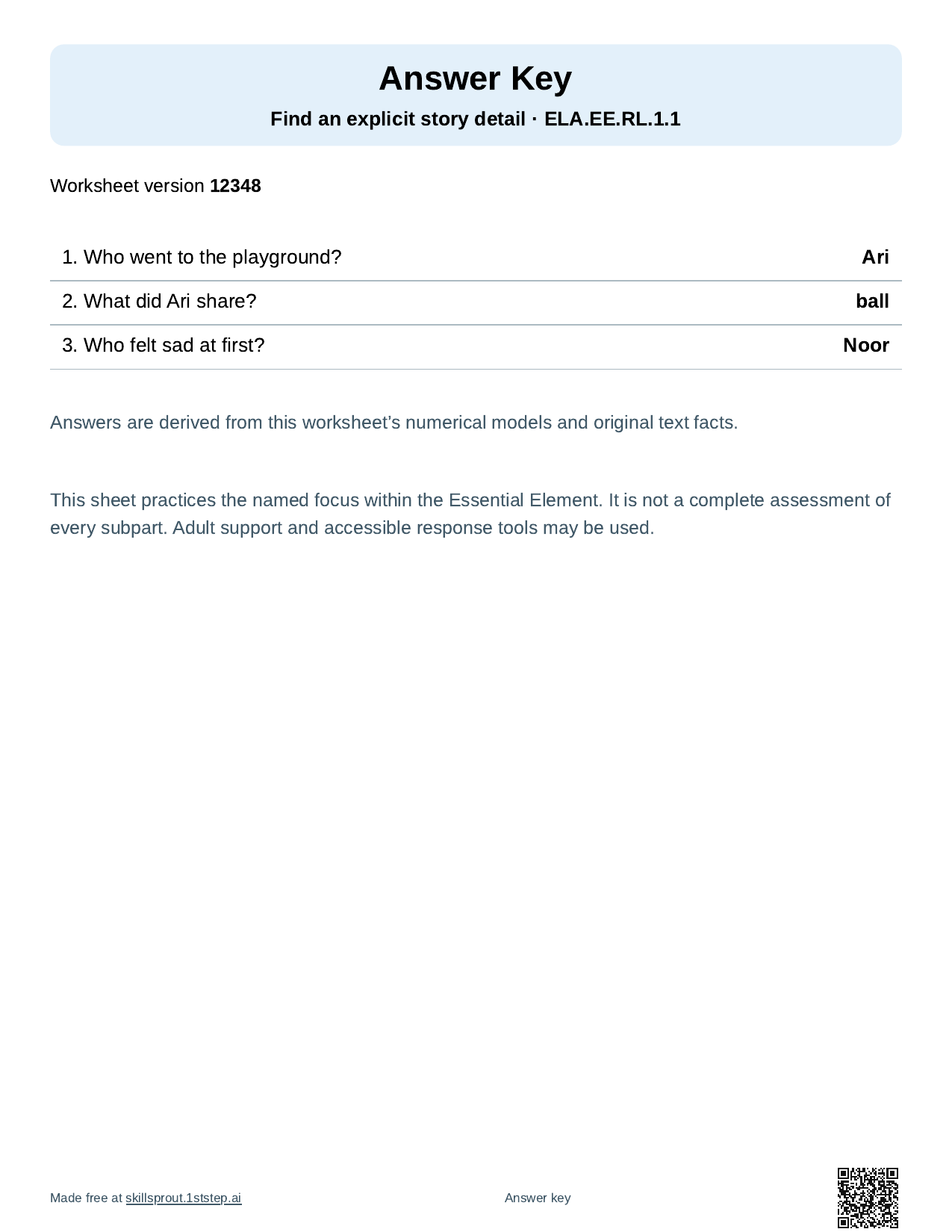
A short note on the handoff sheet helps the sub use the keys the way you want. For example:
- “Keys are in the back clip. Check work with students after each page, or collect pages for me.”
- “Mark what students finished. Leave unfinished items blank.”
- “If a student uses a different response method, note it on the page.”
Keep the keys out of the student copies. If you staple the pack, staple student pages and keys separately.
What to write on the staff handoff sheet
The classroom staff handoff sheet maker prints a routine from a fixed list of activities (Read, Write, Math, Snack, Movement, Break, Tidy up, Pack bag), two to six steps in the order staff will use them. This sample uses Read → Math → Break → Write → Pack bag. Each row has materials, a short direction, and a blank Teacher additions column.
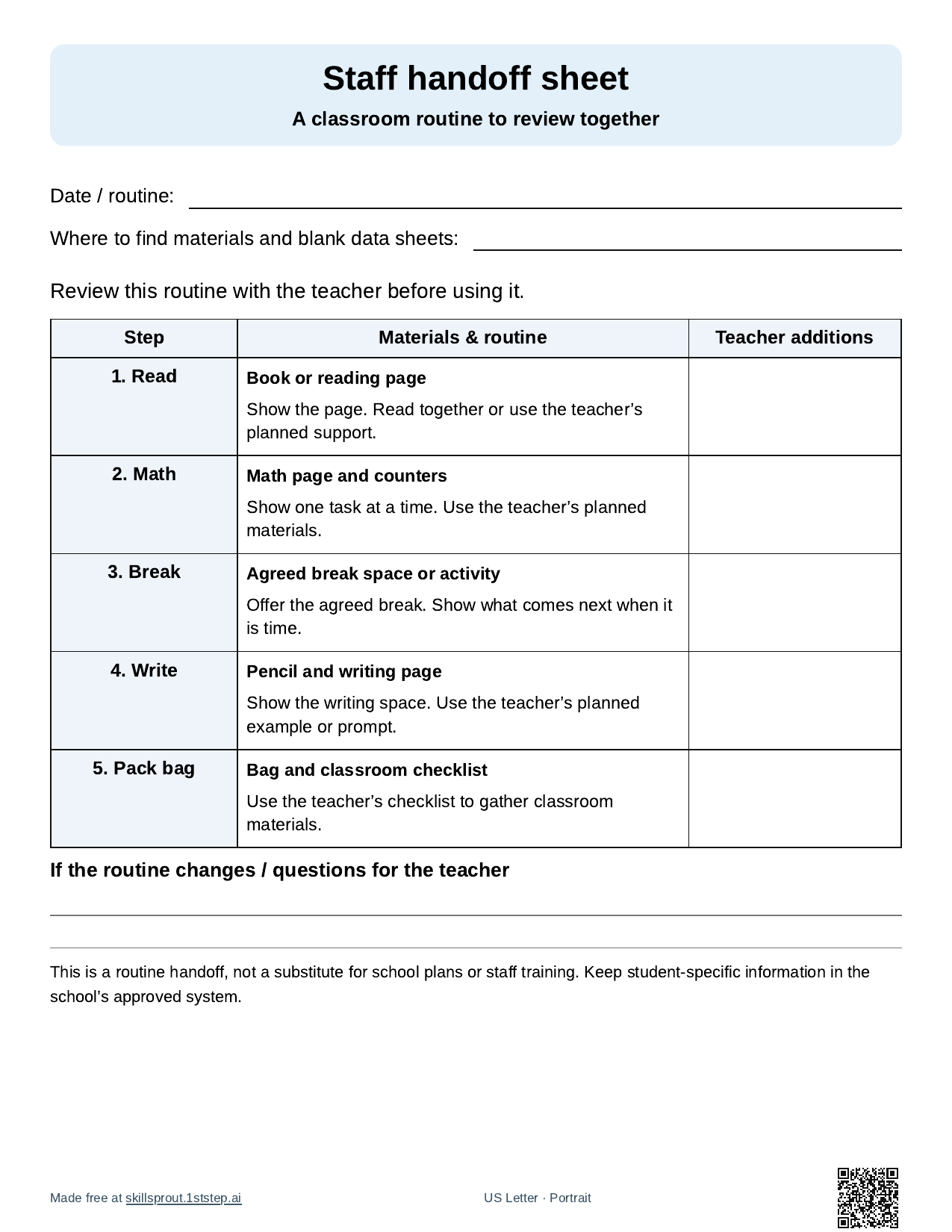
Fill the blank parts by hand. Use general wording about where things are and how the routine runs. Keep student names, diagnoses, and plan details out of the folder. They belong in your school’s approved systems, and the sheet itself says so. Some generic examples:
- Where to find materials: “Review pages: blue folder, top drawer. Keys: back clip. Counters: bin by the window.”
- Read: “Reading page 4. Read the story aloud together first, then do one question at a time.”
- Math: “Pages 1–3. Show one problem at a time. Counters are fine.”
- Break: “Use the usual break spot. Show the first / then board when it is time to come back.”
- Questions for the teacher: “Write anything that didn’t go to plan here. I will follow up.”
The handoff is a routine reference. It does not replace your school’s sub plan or staff training.
Optional: a first / then board
If your students already use first / then boards, put one in the folder so the sub doesn’t have to make one. The first / then board maker prints two large pictures from the same activity list. This one is Math, then Break.
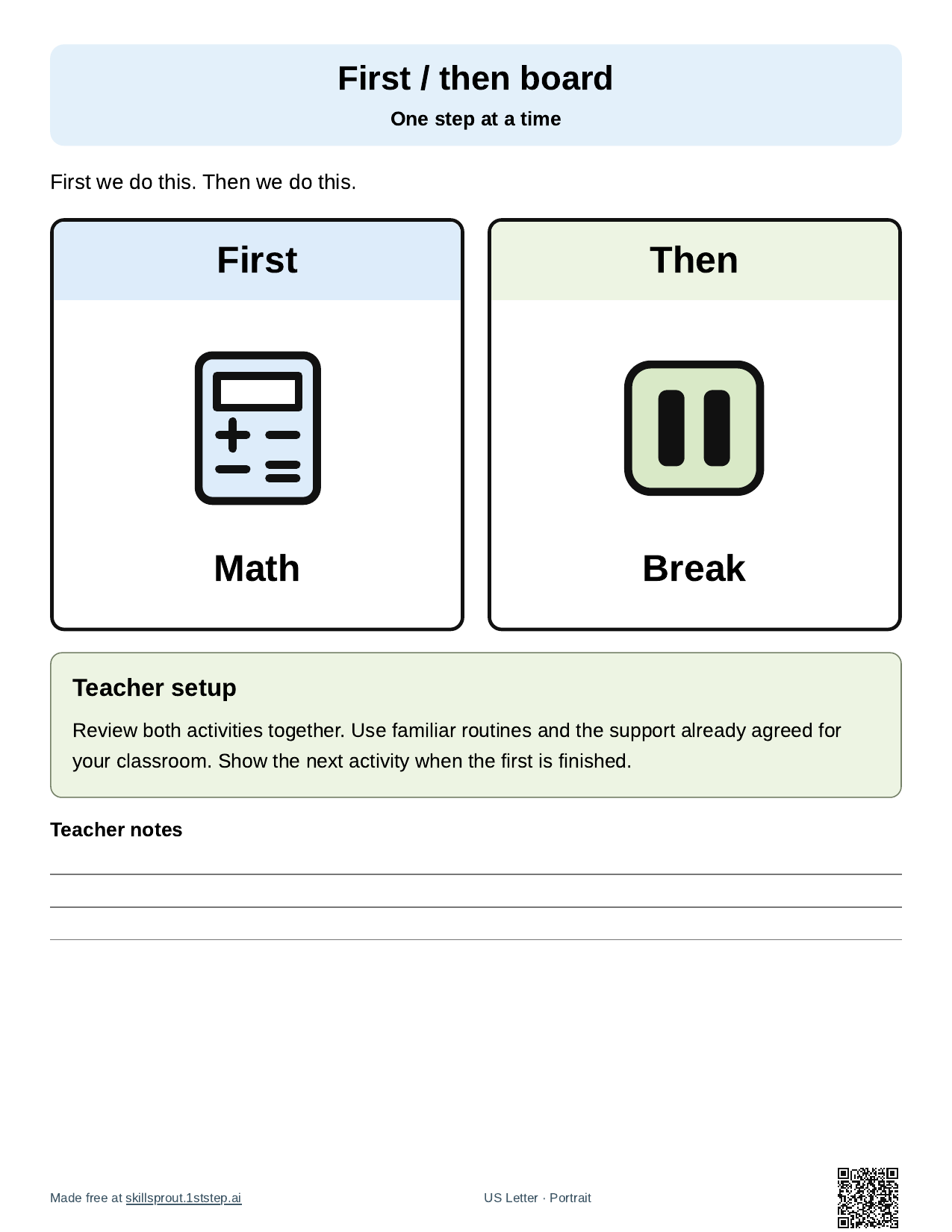
A visual schedule of the same steps is another option. Only include supports students already know. A sub day is not the time to introduce a new visual system.
How to make the folder pages
- Open the SkillSprout studio. The studio uses Google sign-in. The tool and worksheet pages linked above are public to browse.
- Choose the review pack, open Add or change skills, browse Grade 1 (or your grade), and check up to five skills your class has practiced.
- Set Questions per skill and Response format, and keep Include answer keys and teacher guides checked. Under More options, enter worksheet version 12345 to print these exact pages, or keep your own number.
- Press Generate Review Pack, check every page in the preview, then print or download the PDF.
- Under Teacher tools, make the staff handoff sheet and, if you use one, the first / then board, then press Create printable.
Each skill in the pack uses the next version number (12345 through 12349 here), printed in the page footer. Write the version number on the folder so you can reprint the same pages later. All ready skills are listed on the worksheets page, and more Grade 1 practice is on Grade 1 math worksheets and Grade 1 ELA worksheets. Name lines print blank, and no student information goes into the builder.